Short answer: To look good on webcam, face a soft light source such as a window, raise the camera to eye level, keep your head and shoulders in the frame, and use earphones for clear sound. These four changes cost nothing and make a bigger difference than a new camera.
The tips below work on a laptop, a desktop webcam and a phone. Try them once before your next chat and you will notice the difference straight away.
Light
1. Face the light
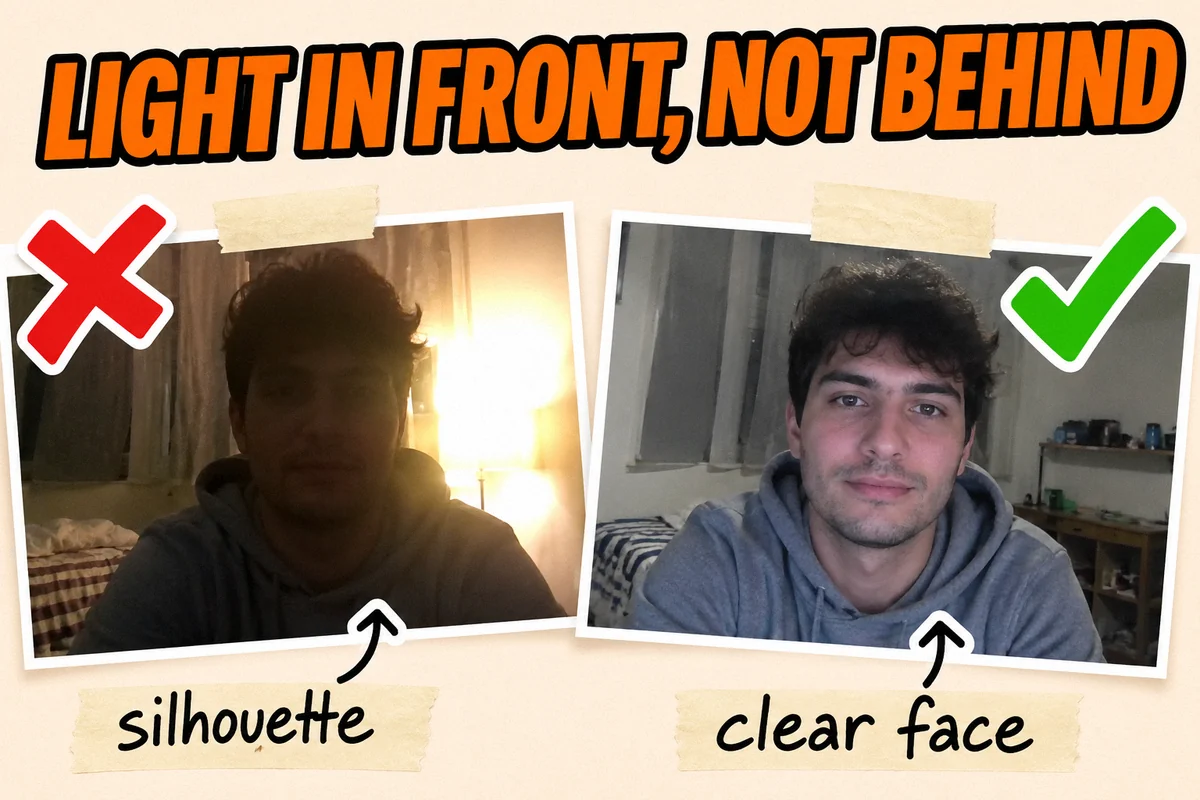
Light should fall on your face, not come from behind you. During the day, sit facing a window. With a bright window or lamp behind you, the camera darkens your face and you appear as a silhouette.
2. At night, put a lamp behind the screen
In the evening, place a lamp behind or just beside your screen so that it lights your face from the front. A lampshade or a white wall softens the light. Avoid a single bulb directly above you, which casts heavy shadows under your eyes.
Camera position
3. Raise the camera to eye level
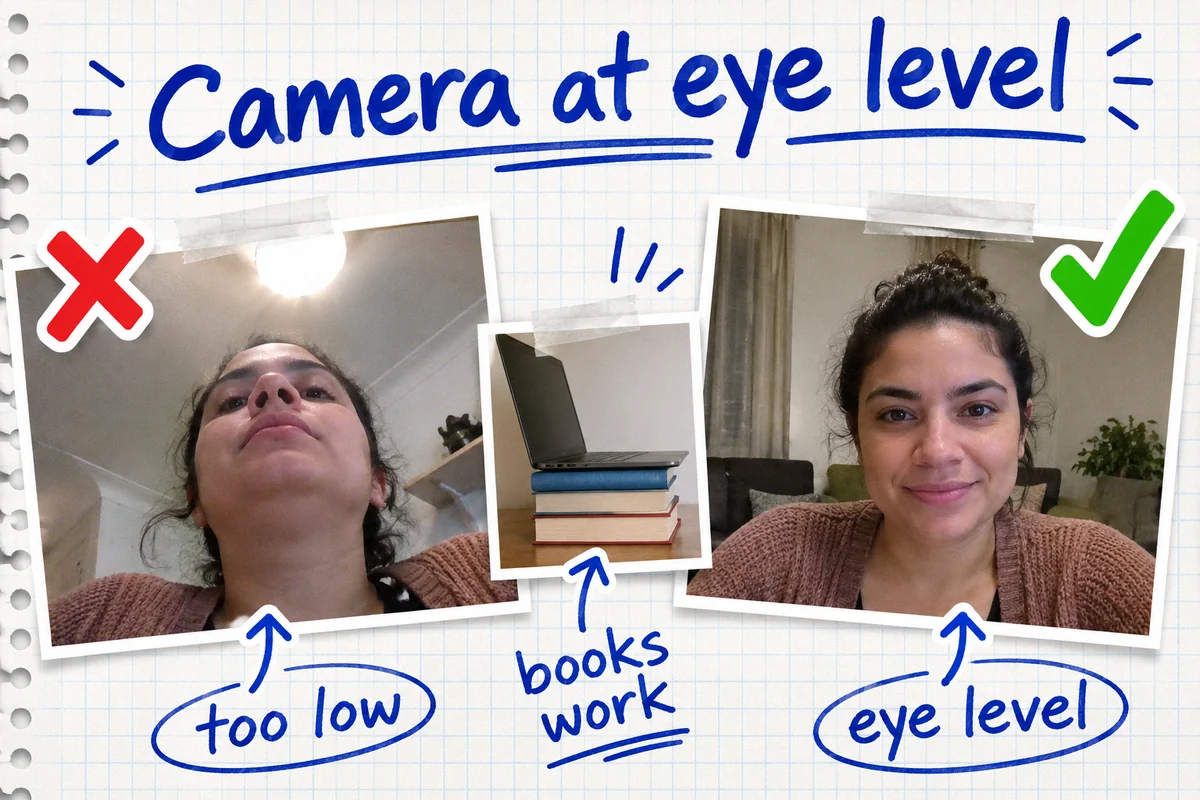
A camera looking up at you from the desk is the least flattering angle there is. Put your laptop on a stack of books or a stand so the lens is level with your eyes. On a phone, lean it against something steady instead of holding it low.
4. Frame your head and shoulders
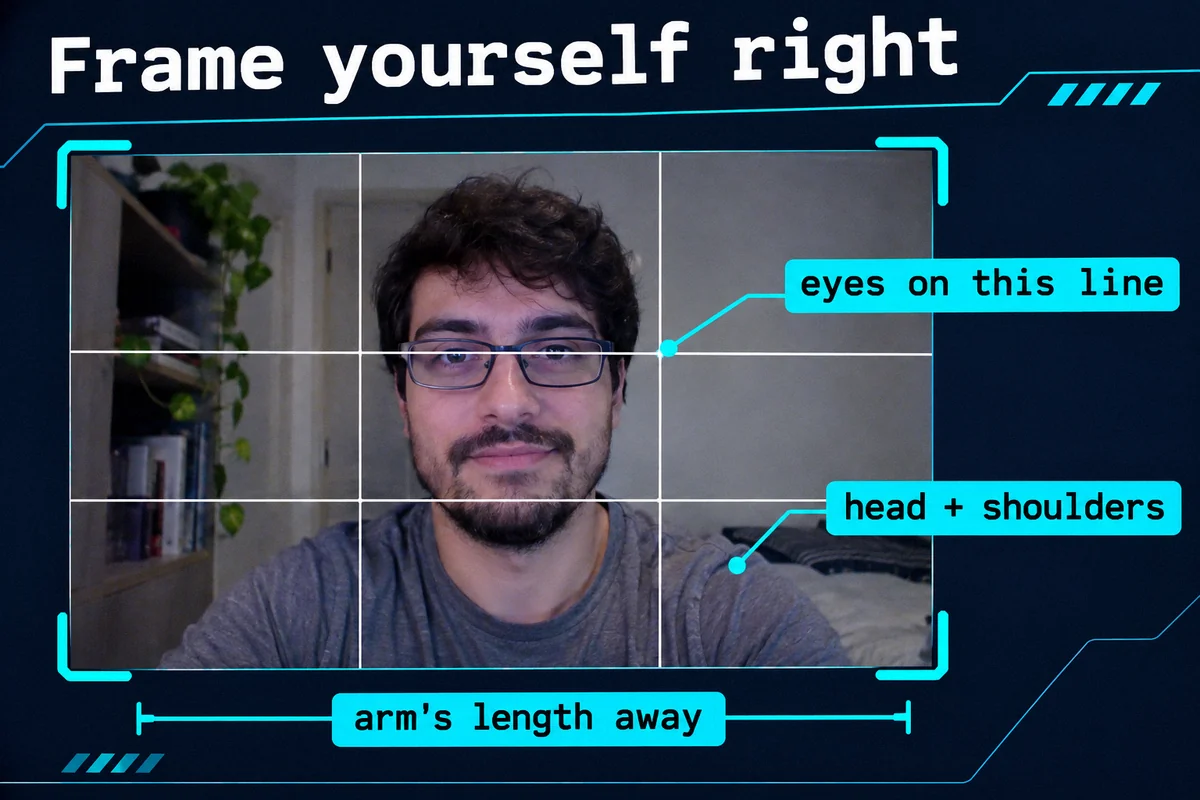
Sit about an arm's length from the camera, with your eyes in the top third of the picture and your shoulders visible. Too close looks distorted, and too far makes your expressions hard to read.
5. Look at the lens when you talk
It feels natural to look at the other person on the screen, but to them you seem to be looking down. Glance at the camera now and then, especially when you say hello or ask a question. To the other person, it feels like real eye contact.
Background and privacy
6. Keep the background simple
A tidy wall or a bookshelf keeps the attention on you. It is also safer: move anything that reveals personal details out of view, such as letters with your address, photos, documents or the view from your window. Our safety guide has more on this.
7. Clean the lens
Fingerprints and dust make the whole picture look blurry and washed out. Wipe the lens gently with a soft, dry cloth. It takes five seconds and is the most overlooked fix on this list.
Sound and connection
8. Use earphones and find a quiet room
Earphones stop the other person's voice from coming back through your microphone as an echo. Close the door, turn off the TV and keep fans away from the microphone. If people still struggle to hear you, read no sound, echo or crackling in video chat.
9. Give your connection some room
A frozen or pixelated picture is usually a connection problem, not a camera problem. Sit closer to your Wi-Fi router, pause large downloads and close video streaming tabs while you chat.
Quick checklist before your next chat
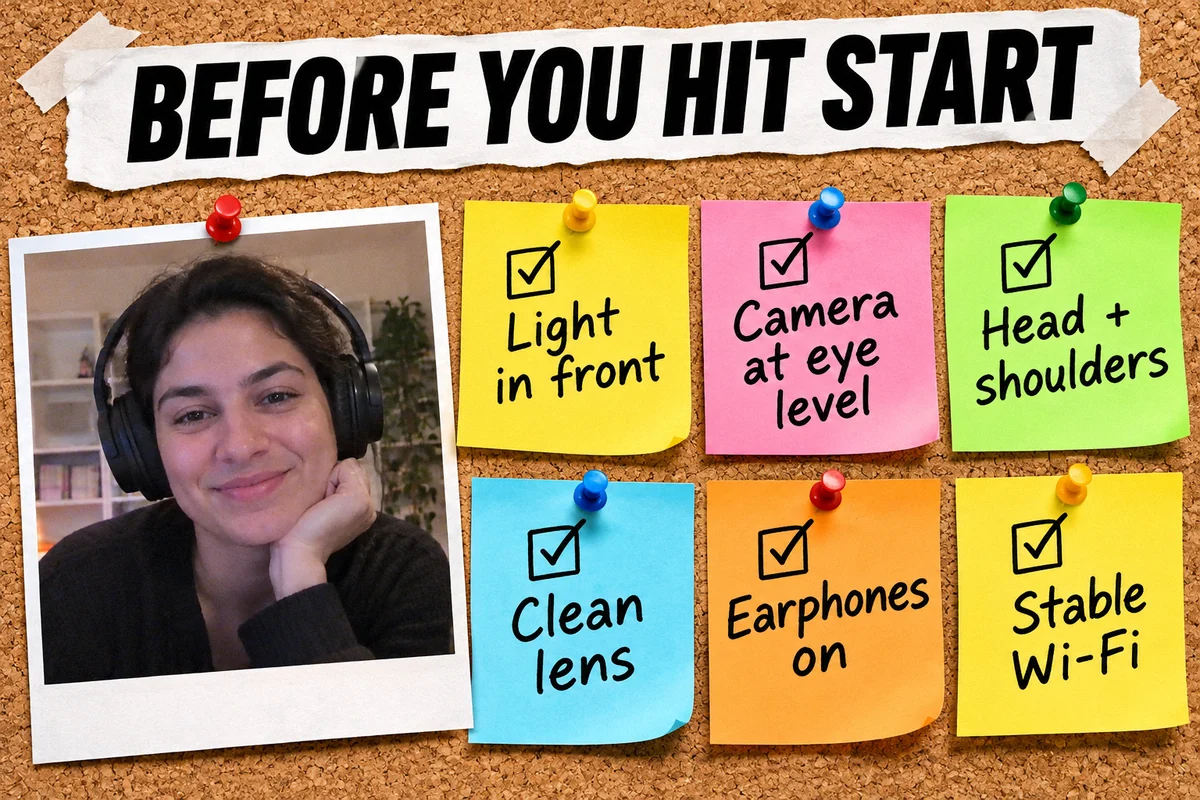
- Light in front of you, not behind you
- Camera at eye level, about an arm's length away
- Head and shoulders in the frame
- A clean lens and a simple background with nothing personal in view
- Earphones on and background noise turned down
- A stable Wi-Fi connection with no big downloads running
Ready to try it? Start a video chat from the home page, and if a conversation does not click, simply move on to someone new.