Video chat needs Safari to have access to your camera and microphone. The first time you start a video chat, Safari asks whether omegle.online may use them. Tap Allow and you are ready. If you tapped Don’t Allow by mistake, you can change it in a few taps: open the page menu in Safari, choose Website Settings… and set Camera and Microphone to Allow.
How to tell that the camera is blocked
When Omegle Online can’t use your camera, a message appears at the top of the video chat: Your camera isn’t working — matching stopped. Matching pauses until the camera works again. Fix the permission with the steps below, then tap Turn On Camera.
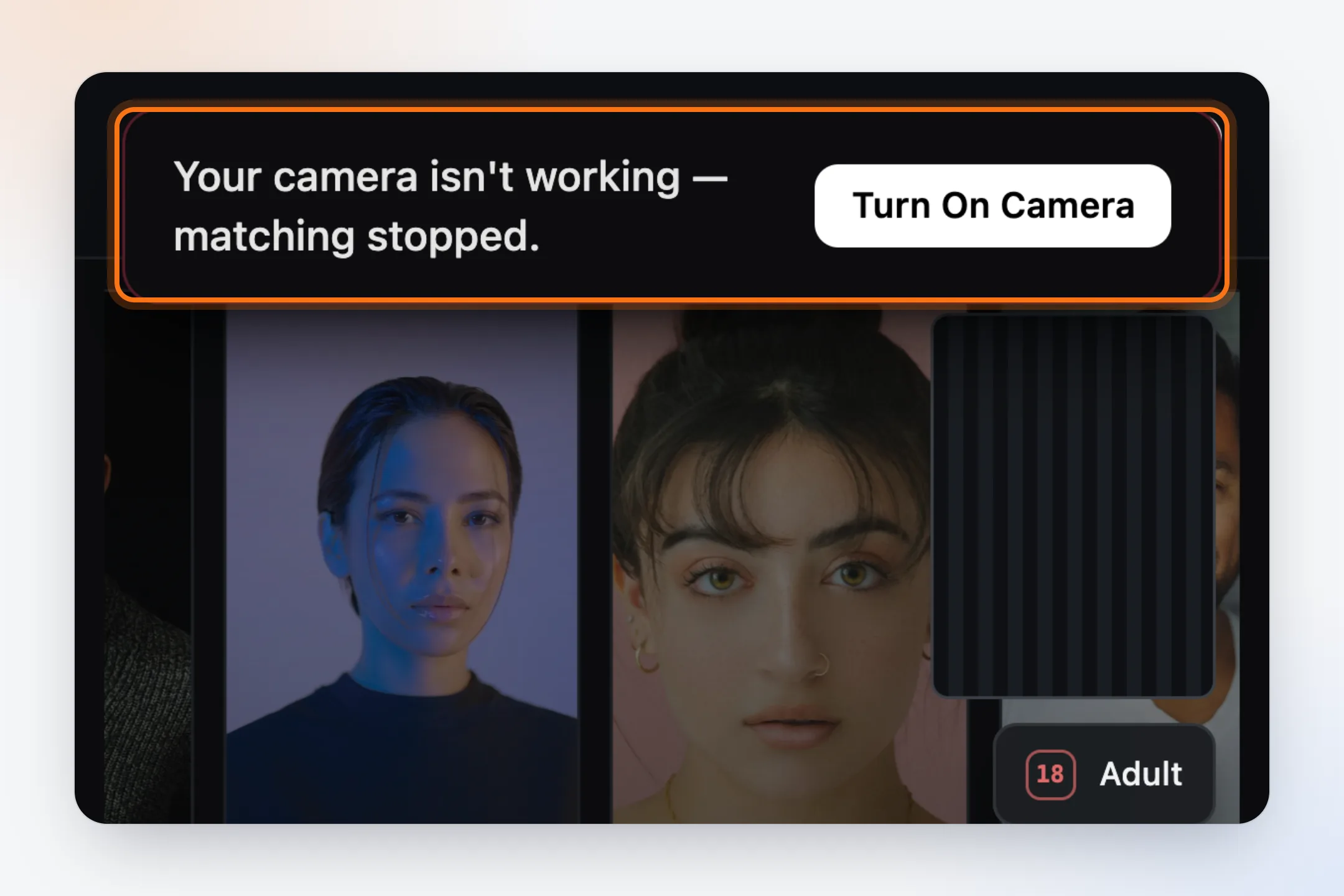
Open the menu for this website
In Safari, tap the menu button on the left of the address bar. On older iOS versions this button is shown as aA.
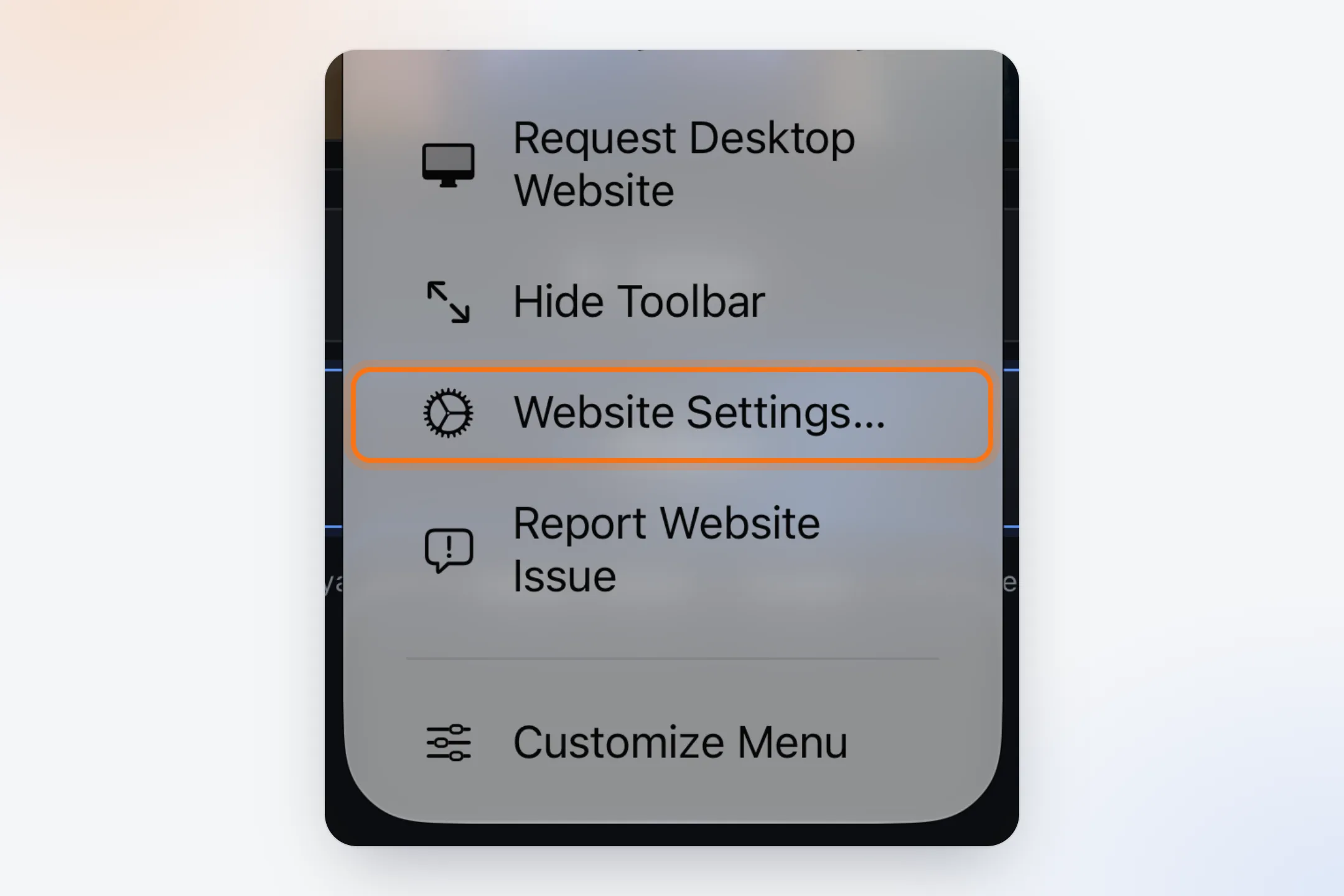
Choose Website Settings
Scroll down in the menu and tap Website Settings….
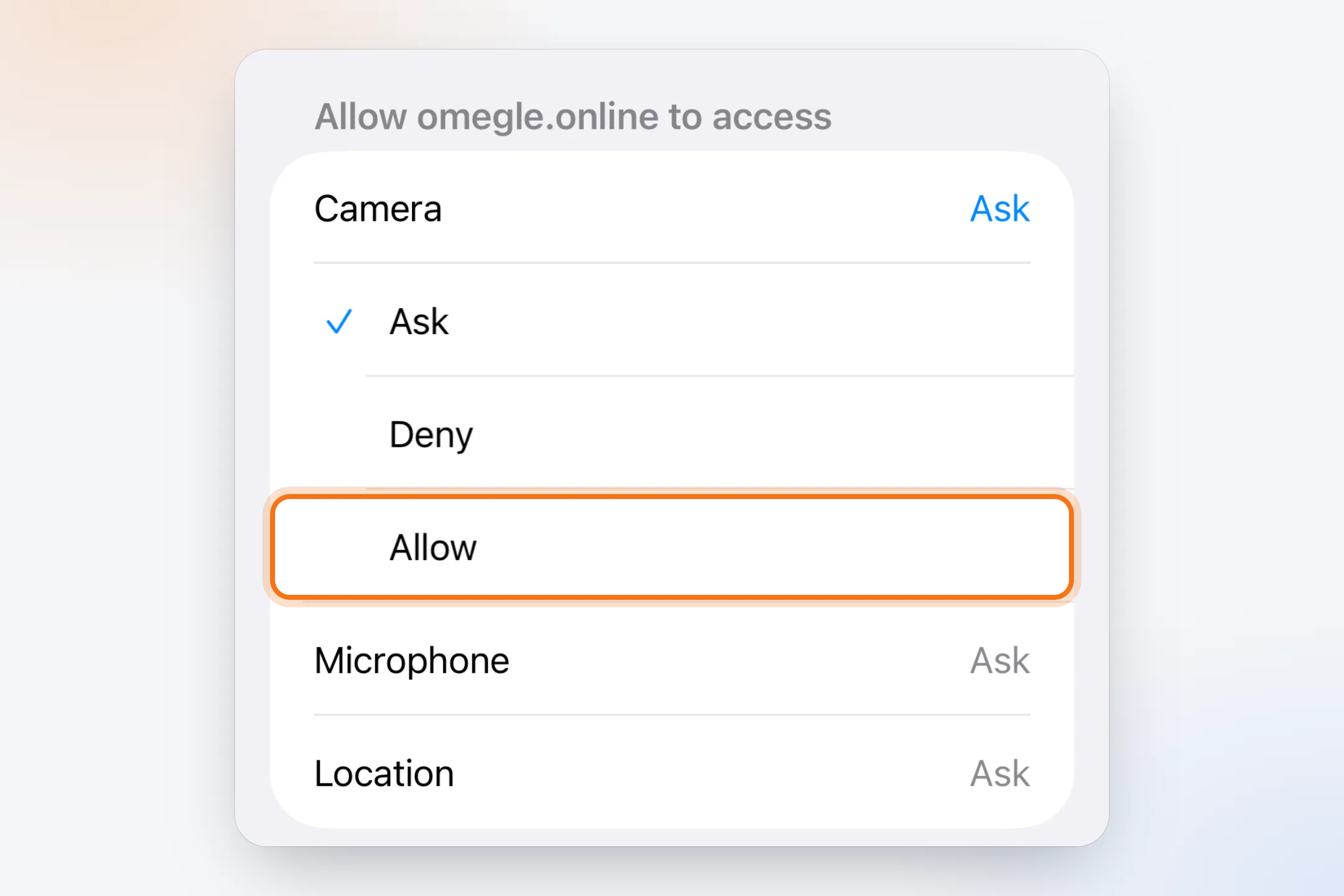
Set Camera and Microphone to Allow
Under Allow omegle.online to access, tap Camera and choose Allow. Do the same for Microphone. If you prefer to confirm every time, choose Ask instead. Tap the checkmark to save.
Reload the page and start again
Reload the page and tap Turn On Camera, or start the video chat again from the beginning.
If Safari doesn’t ask at all
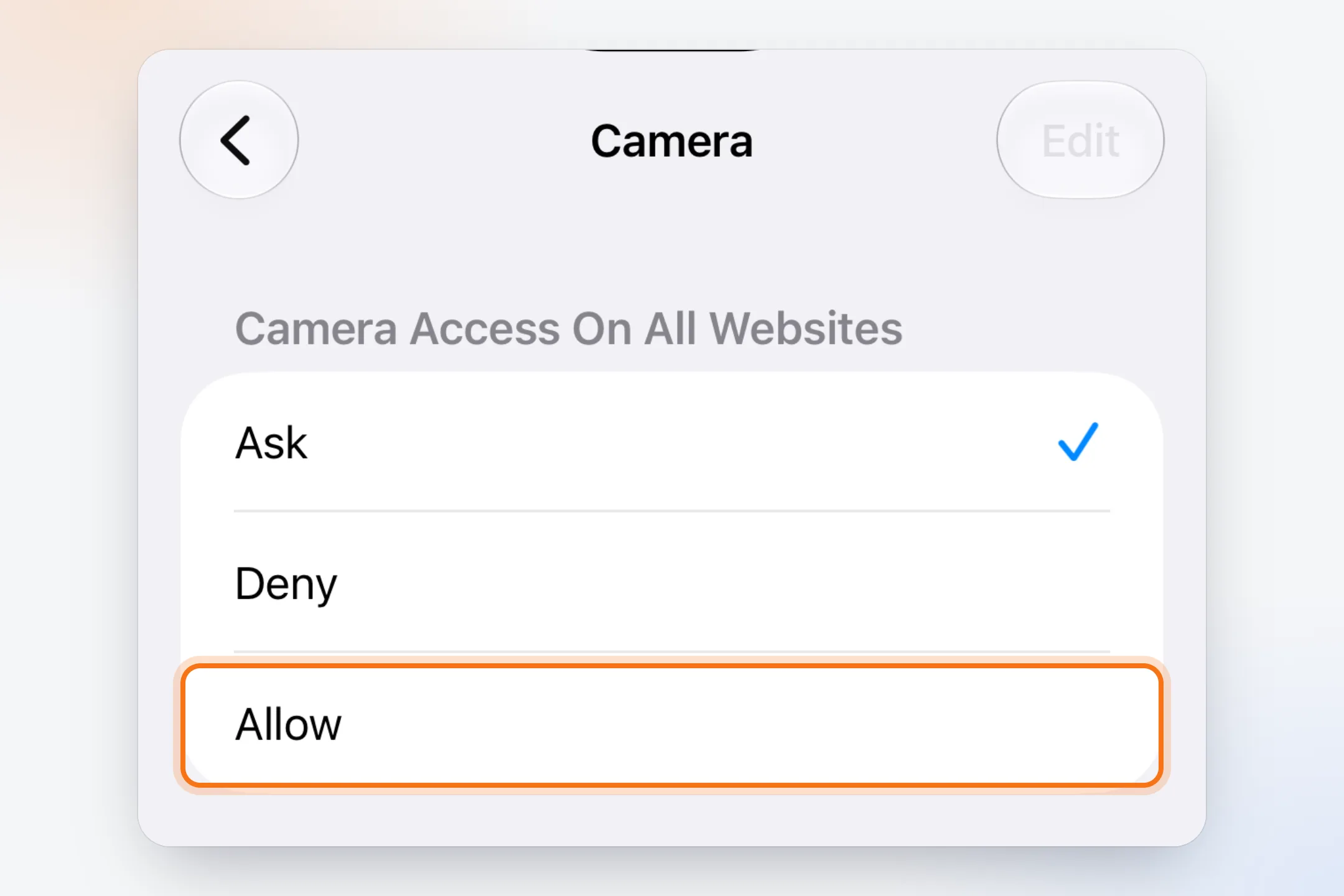
Safari also has a setting for all websites. If it is set to Deny, no site can ask for your camera, including ours. Open Settings > Apps > Safari and scroll down to Settings for Websites. Tap Camera and choose Ask or Allow, then do the same for Microphone. On iOS 17 and earlier, Safari is listed directly in Settings.
Using Chrome or another browser
Every browser on your iPhone needs its own permission. Open Settings > Apps, tap the browser you use and turn on Camera and Microphone. These switches only appear after the browser has asked for access once.
Still not working?
- Close FaceTime, WhatsApp or any other app that may be using the camera, then reload the page.
- Links opened inside Instagram, TikTok and similar apps load in a built-in browser that often can’t use the camera. Open omegle.online in Safari instead.
- If Screen Time is set up on the device, check that the camera isn’t turned off in its content and privacy restrictions.
- Restart your iPhone and make sure iOS is up to date.