On an Android phone, two permissions have to be on for video chat: the site permission in Chrome, and Chrome’s own permission to use the camera and microphone. When you start your first video chat you are asked for both. Choose Allow while visiting the site in Chrome, then While using the app in the Android window, and you are ready.
The first time: allow access
Start the video chat
Open omegle.online/video in Chrome and tap Start Random Video Chat.
Allow the site in Chrome
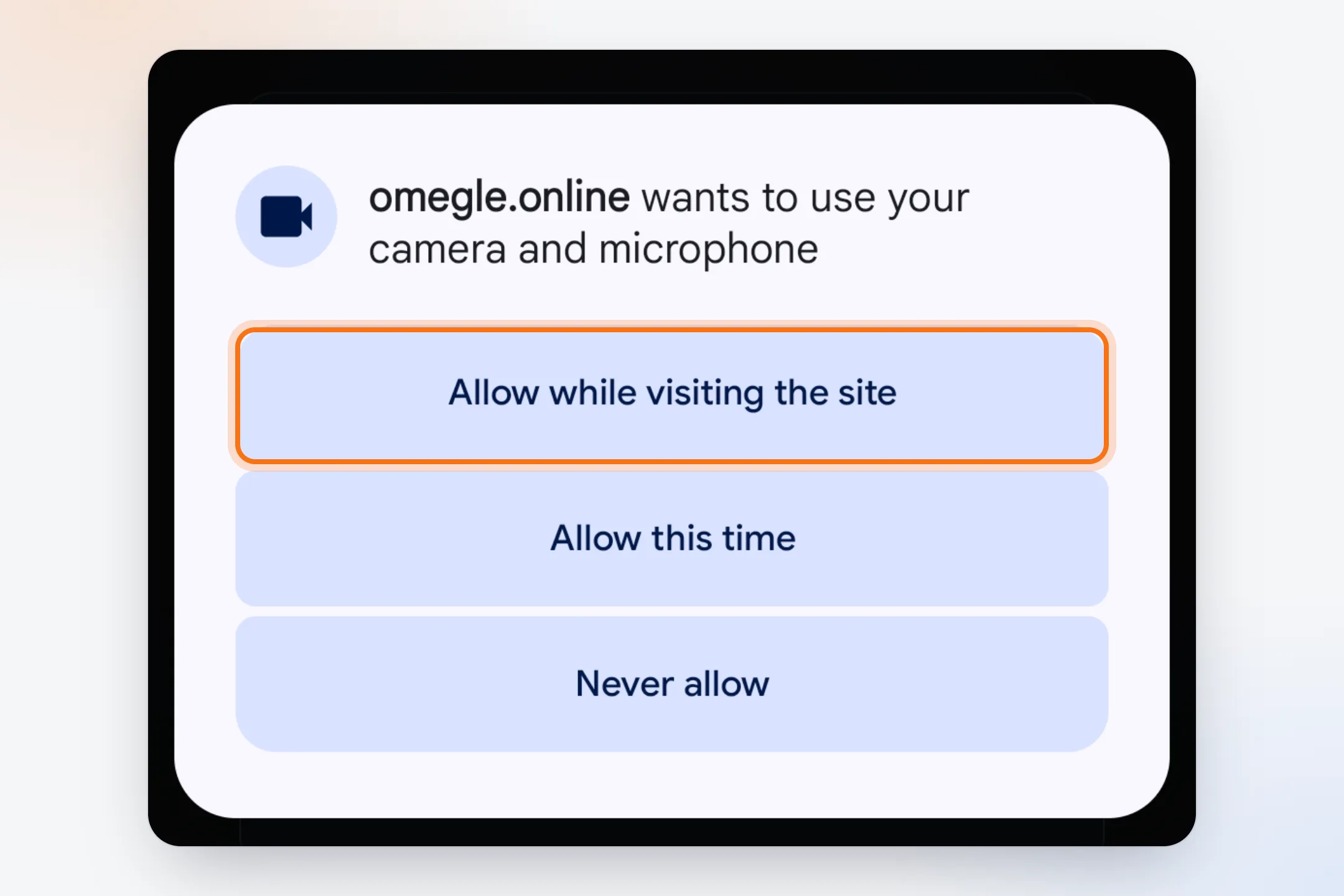
Chrome shows omegle.online wants to use your camera and microphone. Tap Allow while visiting the site. Allow this time also works, but then Chrome asks again on your next visit.
Allow Chrome in Android
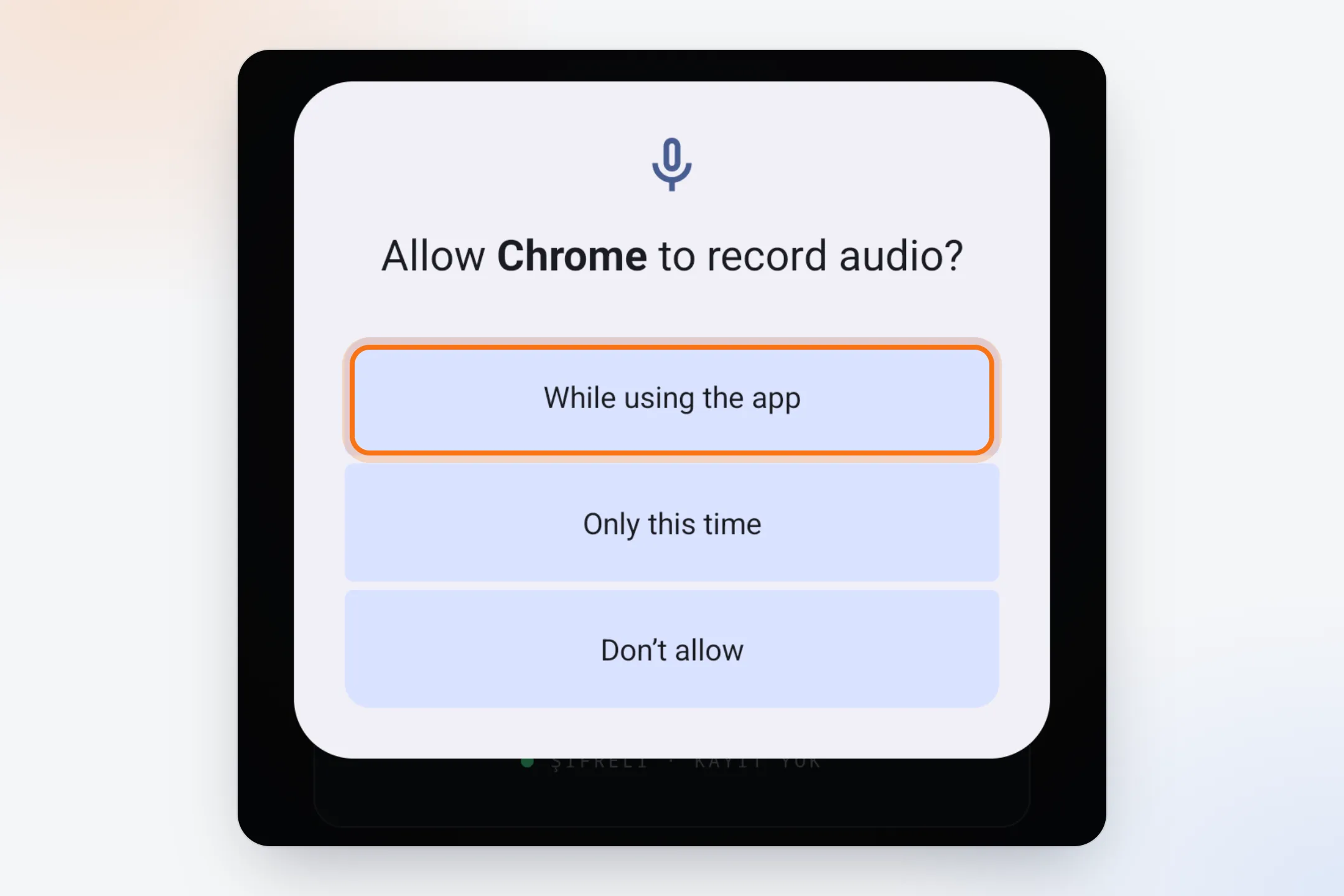
If Chrome hasn’t used the camera or microphone before, Android asks too: once for the camera and once for the microphone. Choose While using the app both times.
If you blocked the camera in Chrome
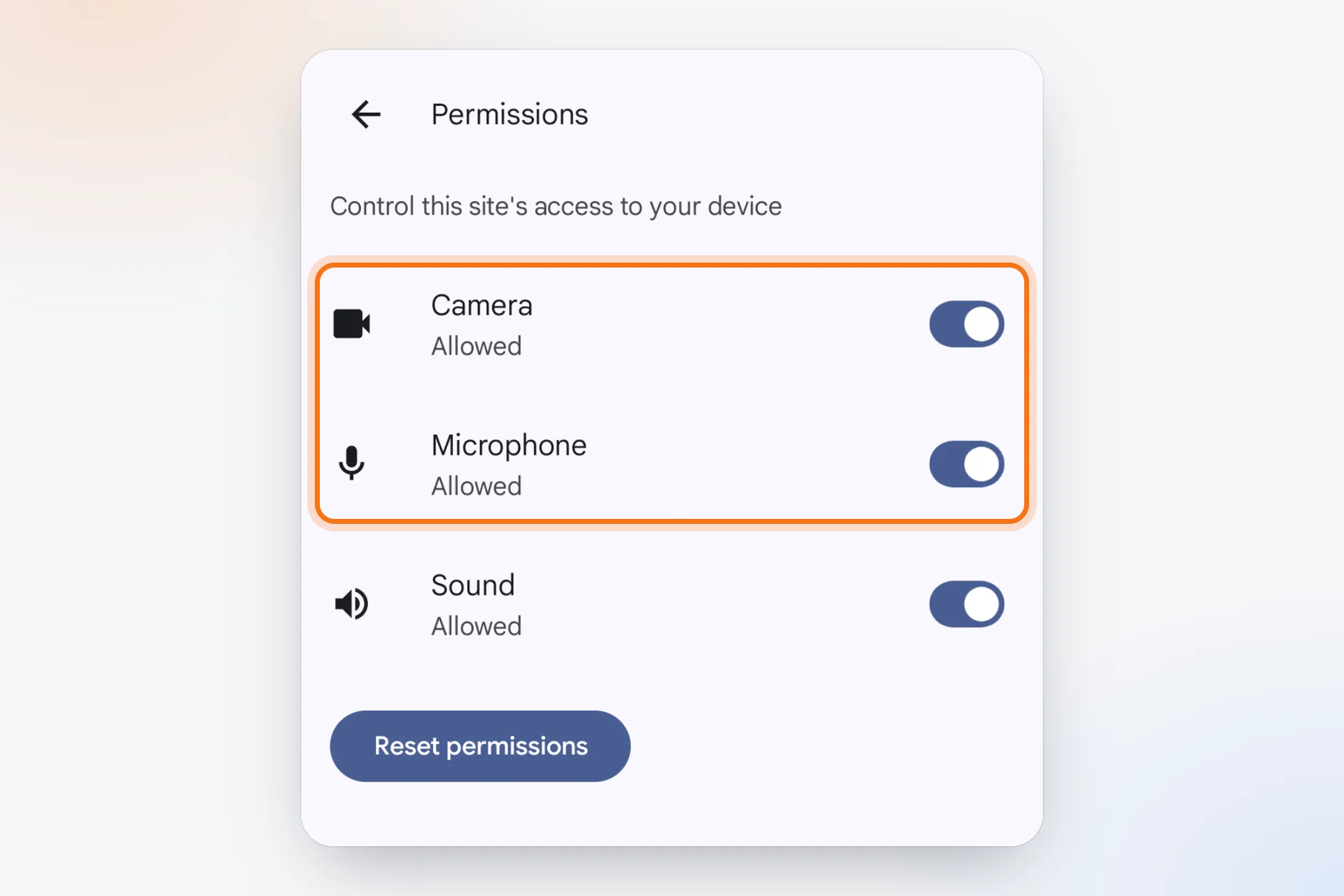
If you tapped Never allow, Chrome won’t ask again by itself. On omegle.online, tap the icon to the left of the web address and open Permissions. Turn on Camera and Microphone, then reload the page. Reset permissions clears every choice for the site, so Chrome asks again on the next start.
You can also check this in Chrome’s menu under Settings > Site settings > Camera and Microphone. Make sure omegle.online is not on the blocked list.
If Chrome itself has no access
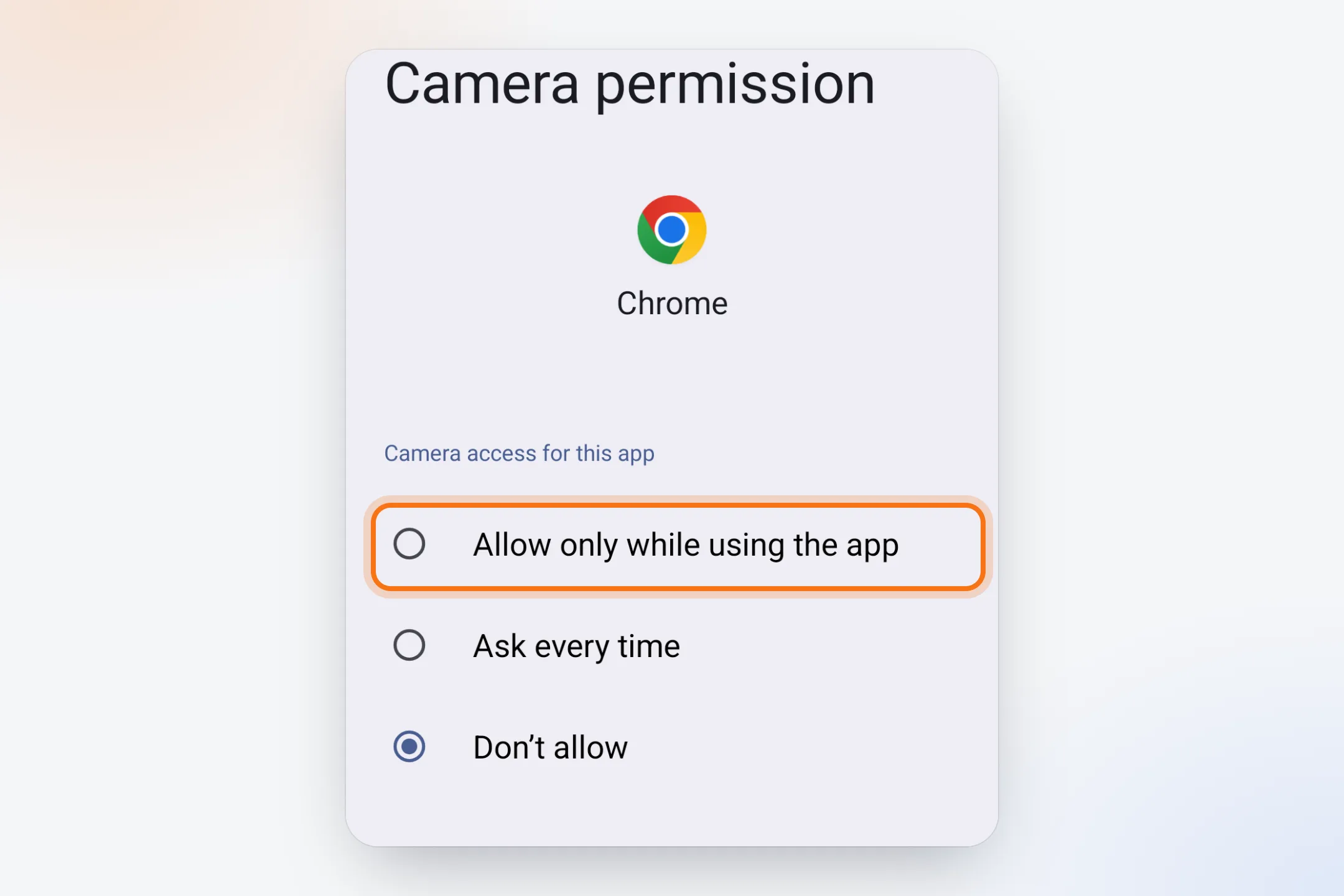
Sometimes the block is in Android rather than in Chrome. You can tell because Chrome shows a bar saying it needs permission for this site, with a Continue button. Tap Continue and allow access. If nothing appears, change it in Settings: open Settings > Apps > Chrome > Permissions, tap Camera and choose Allow only while using the app. Do the same for the microphone.
How to tell that it worked
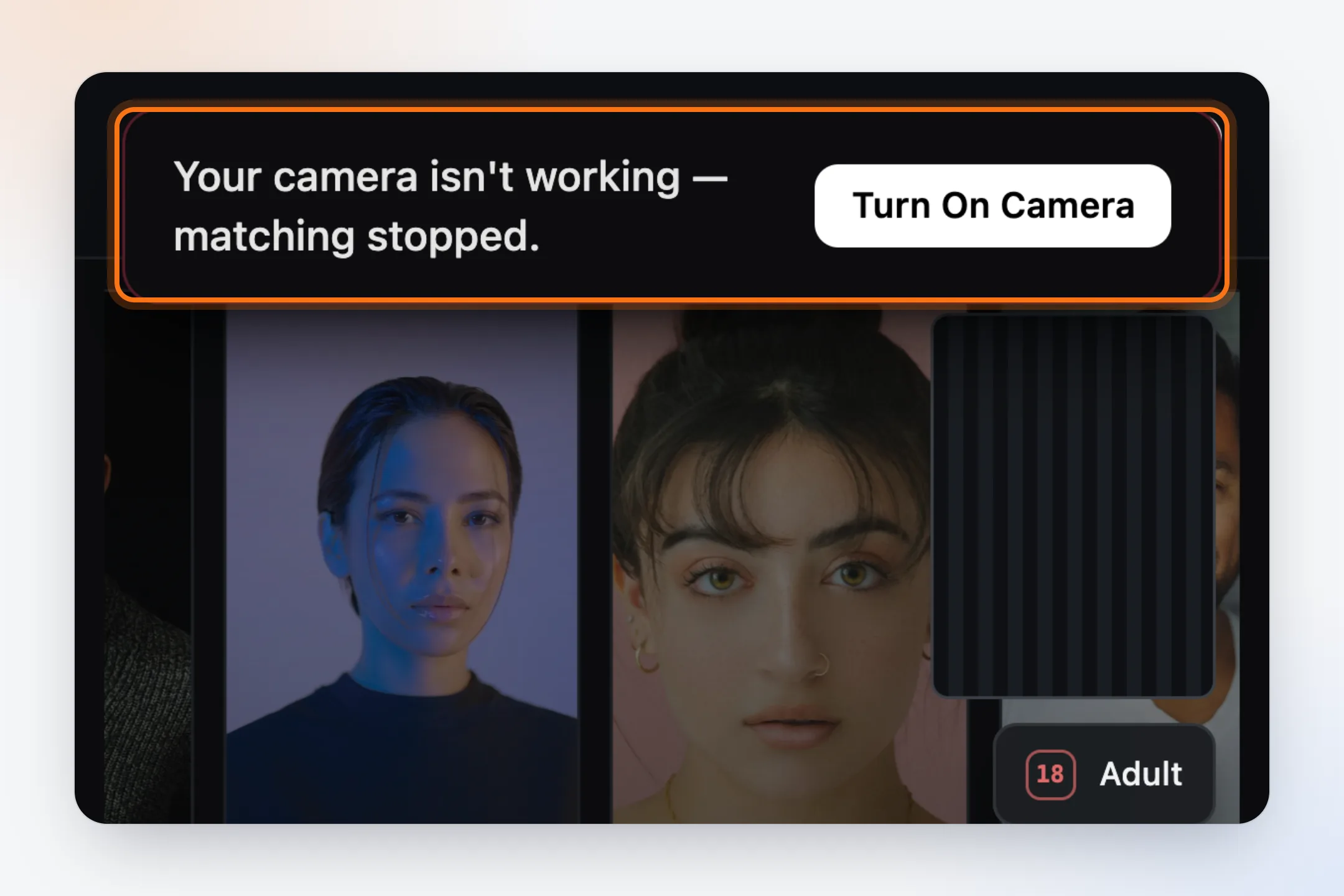
While the camera is blocked, the video chat shows Your camera isn’t working — matching stopped. at the top. Once access is back, tap Turn On Camera and the message disappears.
Still not working?
- Since Android 12 you can turn off the camera and microphone for the whole phone in the quick settings. Swipe down from the top of the screen and make sure camera access and microphone access are on.
- Close other apps that may be using the camera, such as video calls or the camera app.
- Links opened inside Instagram, TikTok or Facebook load in a built-in browser that often can’t use the camera. Use the menu in that app to open the link in Chrome.
- Update Chrome in the Play Store and restart your phone.