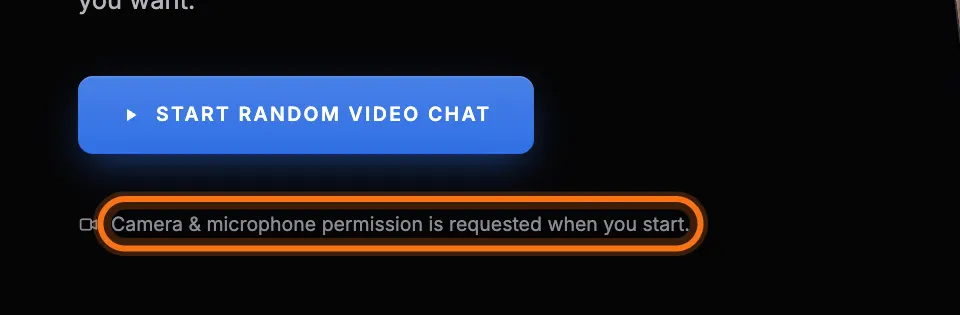
Most camera and microphone problems come from a blocked browser permission or from another app using the device. Start with the quick checks, then follow the steps for your browser.
Quick checks
- Close other apps that may be using your camera, such as Zoom, Teams or FaceTime.
- Reload the page and select Allow when the browser asks.
- Check that your camera is not covered and that an external camera is plugged in.
- Make sure your browser is up to date.
Chrome and Edge on a computer
- Select the icon to the left of the web address.
- Set Camera and Microphone to Allow.
- Reload the page.
Firefox on a computer
- Select the permissions icon to the left of the web address.
- Remove the blocked camera and microphone permissions.
- Reload the page and select Allow.
Safari on a Mac
- In the Safari menu, open Settings for This Website.
- Set Camera and Microphone to Allow.
- Reload the page.
iPhone and iPad
- Open the Settings app and go to Safari.
- Set Camera and Microphone to Ask or Allow.
- Return to Safari and reload the page.
Chrome on Android
- Tap the icon to the left of the web address.
- Open Permissions and allow the camera and microphone.
- Reload the page.
Check your computer's privacy settings
- Windows: open Settings, then Privacy & security. Under Camera and Microphone, turn on access for apps and desktop apps.
- macOS: open System Settings, then Privacy & Security. Under Camera and Microphone, turn on your browser, then restart it.